Aadhaar Authentication History: Stay Safe, Check Usage Now
Aadhaar is used for many identity checks, such as OTP verification, biometric verification, e-KYC, and other Aadhaar-based services. But many people do not know that the Aadhaar UIDAI portal also gives you a way to check your Aadhaar Authentication History. This history helps you see when your Aadhaar was used for authentication, which agency requested it, whether it was successful or failed, and what type of authentication was used.
In simple words, it is like a usage record for your Aadhaar authentication. According to UIDAI, Aadhaar verification history shows detailed authentication transaction logs for the last six months, and you can view a maximum of 50 records at one time.
What Is Aadhaar Authentication History?
Aadhaar Authentication History is a UIDAI online service that lets Aadhaar holders check recent Aadhaar authentication transactions. It shows details like authentication type, date and time, AUA name, transaction ID, UIDAI response code, success or failure status, and error code if any.
You can check it through the official UIDAI website or the mAadhaar app. A registered mobile number is required because OTP verification is needed.
Why Should You Check Aadhaar Authentication History?
You should check your Aadhaar Authentication History because it helps you stay aware of how your Aadhaar is being used. It can help you:
This is especially useful if you recently used Aadhaar for a bank, SIM, government scheme, subsidy, app, or any online verification.
What Information Does Aadhaar Authentication History Show?
UIDAI says the Aadhaar Authentication records can show these details for each authentication transaction:
| Detail | Meaning |
| Auth Modality | The type of authentication used, such as OTP, biometric, demographic, or a combination. |
| Date and Time | When the authentication happened. |
| UIDAI Response Code | A unique code generated for that authentication transaction. |
| AUA Name | The agency or service provider that requested Aadhaar authentication. |
| AUA Transaction ID | The transaction reference from the Authentication User Agency. |
| Authentication Response | Whether the authentication was successful or failed. |
| UIDAI Error Code | Error details, if the authentication failed. |
Here, AUA means Authentication User Agency. UIDAI describes an AUA as an entity that provides Aadhaar-enabled services using Aadhaar authentication. It may be a government, public, or private legal agency registered in India.
Important: It Does Not Show Everything
Aadhaar verification history is helpful, but you should understand its limits. It may show the agency name, date, time, authentication mode, and status. But it may not always clearly show the exact person, branch, employee, or purpose behind the authentication.
So, instead of thinking “this will show exactly who used my Aadhaar,” it is better to understand it as: “This shows which agency requested Aadhaar authentication and whether it succeeded or failed.” If you see an unknown AUA name, check whether you used any related service around that date and time.
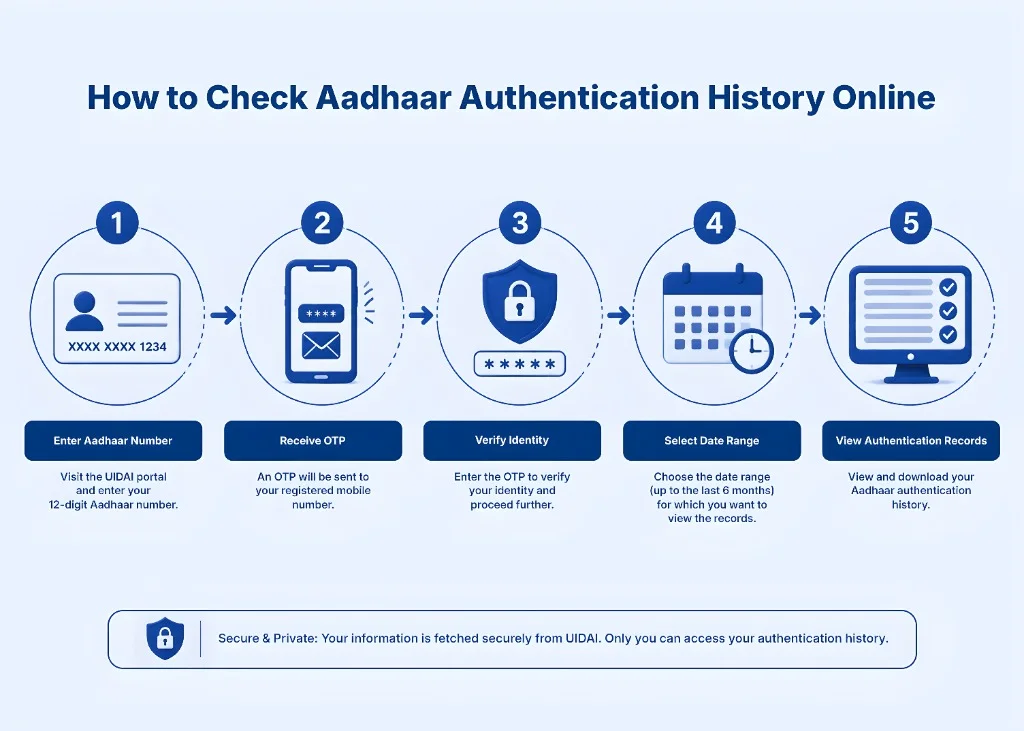
How to Check Aadhaar verification history Online
Follow these simple steps:
Step 1: Visit the official UIDAI website
Go to the official UIDAI portal and open the Aadhaar Authentication History service. You can also find it from the My Aadhaar section under Aadhaar services.
Step 2: Enter Aadhaar Number or VID
Enter your 12-digit Aadhaar number or 16-digit Virtual ID, also called VID. Using VID is a safer option because you do not need to enter your Aadhaar number directly.
Step 3: Enter the security code
Type the security code shown on the page.
Step 4: Request OTP
Click on the OTP option. UIDAI will send an OTP to your registered mobile number. A registered mobile number is mandatory for using this service.
Step 5: Select the date range
Choose the date range for which you want to check authentication records. UIDAI allows you to check authentication history for the last six months, with up to 50 records visible at one time.
Step 6: View your Aadhaar Authentication History
After OTP verification, you will see your Aadhaar authentication records. Check the date, time, AUA name, authentication type, response code, and success/failure status carefully.
How to Check Aadhaar Authentication History on mAadhaar App
UIDAI also allows Aadhaar holders to check authentication history through the mAadhaar app. Basic steps:
The exact app layout may change with updates, but the option is usually available under Aadhaar services or profile-related security services.
How Many Aadhaar Authentication Records Can You Check?
You can check authentication records for the last six months. UIDAI allows a maximum of 50 records at one time. If you want to check more records, you need to select a different date range in the calendar and view them accordingly.
Simple Tip: Do not select the full six-month range at once if you use Aadhaar often. Instead, check month by month. This makes it easier to read the records and spot anything unusual.
What Is UIDAI Response Code?
For every Aadhaar authentication transaction, UIDAI generates a unique response code. UIDAI says this response code helps identify the transaction and can be used for further enquiry with the AUA. So, if you see a suspicious entry, note down:
These details can help when contacting the concerned agency or UIDAI.
What Does “Success” or “Failure” Mean?
A success response means the Aadhaar authentication was completed successfully. A failure response means the authentication did not go through. This may happen because of wrong OTP, biometric mismatch, locked biometrics, technical errors, poor fingerprint quality, or other reasons.
A failed record does not always mean fraud. For example, if you tried to verify Aadhaar at a bank or app and entered the wrong OTP, it may show as failed. But if you see repeated failed attempts that you do not recognize, you should take it seriously.
What to Do If You See an Unknown Aadhaar Authentication Entry
If you find an entry that you do not remember, do not panic. First, check carefully.
1. Match the date and time
Think about what you were doing at that time. Did you:
Sometimes the AUA name may not look familiar, but it may belong to the backend agency used by a bank, app, or service provider.
2. Check the authentication type
If the record says OTP and you received/entered an OTP, it may be genuine. If the record says biometric and you did not use fingerprint, iris, or face authentication, look more closely.
3. Save the details
Take a screenshot or note the response code, AUA name, date, time, and transaction ID.
4. Lock your biometrics if needed
If you suspect biometric misuse, lock your Aadhaar biometrics. UIDAI says that when biometrics are locked, the Aadhaar holder cannot use fingerprint, iris, or face authentication, and no entity can perform biometric-based Aadhaar authentication for that Aadhaar holder.
5. Contact UIDAI support
You can contact UIDAI through the toll-free number 1947 or email help@uidai.gov.in. UIDAI lists 1947 and help@uidai.gov.in on its official contact page.
How to Make Your Aadhaar Safer
Aadhaar verification history is useful, but safety also depends on your habits. Here are simple tips:
Common Reasons Aadhaar Authentication May Fail
Aadhaar authentication can fail for many reasons. Some common ones are:
UIDAI’s error code list includes different technical and Aadhaar-status-related errors, such as biometric lock-related errors, invalid Aadhaar number, suspended Aadhaar, and other system errors. If the issue happens once, it may be a normal error. If it happens again and again, contact the service provider or UIDAI.
Aadhaar Authentication History vs Aadhaar Update History
Many users confuse these two.
| Feature | What It Shows |
| Aadhaar Authentication History | Shows when Aadhaar was used for authentication. |
| Aadhaar Update History | Shows past updates made to Aadhaar details, such as address or other demographic changes. |
So, if you want to know where Aadhaar was used, check Authentication History. If you want to know what changes were made to Aadhaar details, check Update History.
Can Someone Misuse Aadhaar Without OTP?
Aadhaar authentication usually needs OTP, biometric, demographic, or another approved authentication method. If your mobile number is safe and biometrics are locked, misuse becomes harder. Still, you should stay alert. Do not share OTP, avoid giving Aadhaar copies unnecessarily, and use VID or Masked Aadhaar when possible. If you feel your Aadhaar may have been misused, check Authentication History, lock biometrics, and contact UIDAI.
Who Should Check Aadhaar verification history Often?
You should check it regularly if:
A quick check can save you from bigger problems later.
FAQs
Final Thoughts
Aadhaar Authentication History is a useful safety tool for every Aadhaar holder. It helps you check recent Aadhaar authentication activity and understand how your Aadhaar was used. You can view records from the last six months, up to 50 records at a time, through UIDAI’s website or the mAadhaar app. A registered mobile number is required for OTP verification.
Check your history regularly, use VID when possible, avoid sharing OTP, and lock your biometrics if you do not use biometric authentication often. Aadhaar safety is not difficult. You just need to check it from time to time and act quickly if something looks wrong.