UIDAI Login Not Working After April 2026 Update? Easy Fixes
If your UIDAI login not working after April 2026 update, the issue is usually linked to OTP, browser cache, app version, server load, Aadhaar lock settings, or your registered mobile number. First, try logging in from the official My Aadhaar UIDAI portal, clear browser cache, update the Aadhaar app, check your mobile network, and make sure your Aadhaar-linked mobile number is active.
If OTP is not coming, wait a few minutes before trying again. If your registered mobile number is old or inactive, you may need to update it at an Aadhaar centre.
Why UIDAI Login May Stop Working After an Update
Many users face login issues after an app or portal update. This does not always mean your Aadhaar is blocked. Most of the time, it is a temporary technical issue. After the April 2026 update, some users started facing problems like:
The good news is that most of these problems can be fixed at home.
First, Check This Before You Panic
Before trying many fixes, check these simple things:
If the answer points to your phone, browser, or network, you can usually fix it quickly.
How to Fix UIDAI Login Not Working After April 2026 Update
1. Use the Official MyAadhaar Portal
Always use the official UIDAI or MyAadhaar portal. Do not search randomly and click unknown links. The MyAadhaar login normally works with:
If you are trying from a third-party website, stop and go directly to the official portal. Tip: Bookmark the official website after opening it once. This helps you avoid fake Aadhaar websites.
2. Clear Browser Cache and Cookies
After a website update, old browser files can conflict with the new login page. This can make the page freeze or show errors. Try this:
If you are using Chrome, also try Firefox, Edge, or Safari. Easy tip: Use incognito/private mode once. If login works there, your normal browser cache or extension is likely causing the issue.
3. Turn Off VPN or Proxy
UIDAI login may fail if your connection looks unusual. VPNs and proxy tools can sometimes block OTP, captcha, or login sessions. Try this:
This is one of the easiest fixes, but many people miss it.
4. Update the Aadhaar App
If you are using the Aadhaar app or old mAadhaar app, update it from the official app store. Old app versions may not work well after a major update. The newer Aadhaar app is also being promoted with better security and easier identity sharing features. Try this:
If the app still crashes, uninstall and reinstall it.
5. Check If OTP Is Coming to the Right Mobile Number
UIDAI login depends heavily on OTP. If OTP is not coming, check whether your mobile number is still linked with Aadhaar. Common OTP problems include:
Try this:
If your Aadhaar is linked to an old number, online login will not work properly. You may need to visit an Aadhaar centre to update your mobile number.
6. Enter Captcha Carefully
Sometimes the issue is not OTP. It is captcha. If captcha is not loading or keeps failing:
Captcha errors are common after portal changes. Do not keep submitting again and again too fast. Refresh and retry slowly.
7. Try the New Aadhaar App Instead of the Old mAadhaar App
UIDAI has been moving toward the newer Aadhaar app experience. If your old mAadhaar app is not working, try the new official Aadhaar app. The newer app is made for better privacy, QR-based sharing, and stronger login checks. So, after recent updates, some old app features may not work the same way. Try this:
Tip: Do not download Aadhaar apps from unknown websites or APK links. Use only official app stores.
8. Check Aadhaar Lock or Biometric Lock Status
If you are trying to unlock Aadhaar, update details, or complete KYC, your Aadhaar lock or biometric lock setting may affect the process. If Aadhaar is locked, some authentication services may not work until you unlock it. Try using:
If the unlock page shows a technical error, try again later or use the app. If it still fails, contact UIDAI support.
9. Do Not Request OTP Again and Again
This is a small but important point. If you click “Send OTP” too many times, the system may slow down or block new OTPs for a short time. You may also get confused because old OTPs and new OTPs arrive together. Best practice:
This simple step can save a lot of frustration.
10. Try During Non-Peak Hours
Government portals can become slow when too many people use them at the same time. Try logging in:
If the issue is from UIDAI’s server side, your device may be fine. Waiting and trying later may solve it.
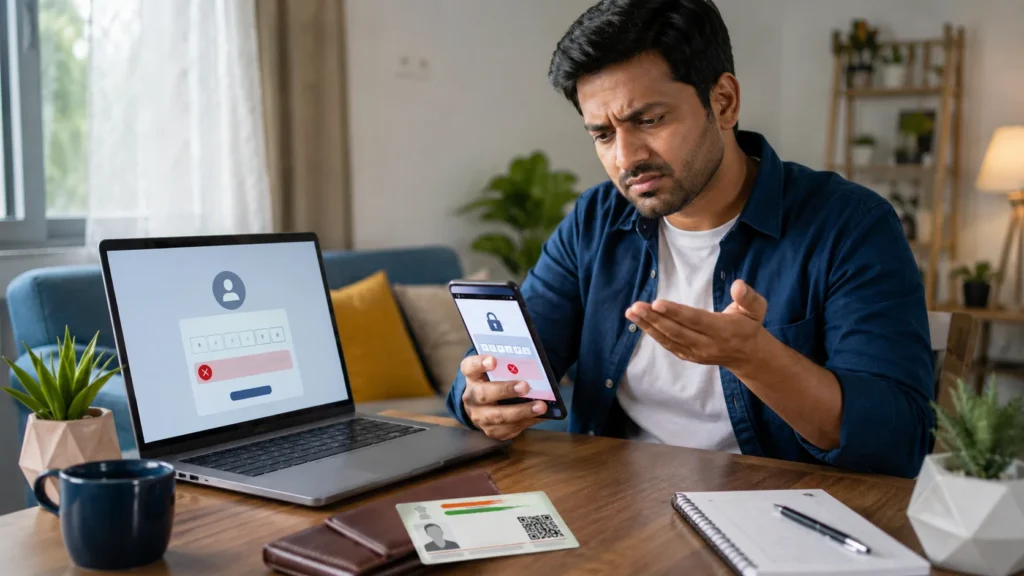
UIDAI Login Error: What It Means
Here are common login problems and what you can do.
| Problem | Possible Reason | What to Try |
| OTP not received | Wrong/old mobile number, network issue, server delay | Check registered number, restart phone, wait and retry |
| Captcha not working | Browser cache, extension, page error | Clear cache, try another browser |
| Page not loading | Internet, server, VPN | Turn off VPN, change network |
| App crashing | Old app version or phone issue | Update, reinstall, restart phone |
| Invalid OTP | Old OTP entered | Request fresh OTP and use latest one |
| Aadhaar unlock error | Server or lock setting issue | Try app, SMS option, or contact UIDAI |
| Login loop | Cookies/session issue | Clear cookies or use incognito mode |
What If Your Registered Mobile Number Is Not Active?
This is one of the biggest reasons UIDAI login fails. If your Aadhaar-linked mobile number is lost, inactive, or changed, you may not receive OTP. Without OTP, you cannot use many online Aadhaar services. In that case, you usually need to visit an Aadhaar Enrolment/Update Centre and update your mobile number. Carry:
After updating your number, keep the acknowledgement slip safely. You can use the update request number to track the status.
Is UIDAI Login Down for Everyone?
Sometimes the problem is not your phone or Aadhaar. The UIDAI portal may be slow or under maintenance. Signs that it may be a server-side issue:
In this case, do not keep trying every minute. Wait and try later.
Safety Tips While Fixing UIDAI Login
Aadhaar is sensitive. Be careful while troubleshooting. Follow these safety tips:
A real UIDAI login fix should not require you to give your OTP to another person.
When Should You Contact UIDAI?
Contact UIDAI if:
You can contact UIDAI through the official helpline, official grievance portal, or nearby Aadhaar center.
Simple Checklist to Fix UIDAI Login Fast
Try these steps in order:
- Open the official MyAadhaar portal.
- Check your internet.
- Turn off VPN.
- Clear browser cache.
- Try incognito mode.
- Try another browser.
- Restart your phone.
- Check if SMS is working.
- Wait before requesting OTP again.
- Update or reinstall the Aadhaar app.
- Try the new Aadhaar app.
- Check if your registered mobile number is active.
- Contact UIDAI if nothing works.
FAQs
Final Thoughts
If UIDAI login stopped working after the April 2026 update, do not worry right away. In most cases, the problem is due to OTP delay, old app version, browser cache, server load, or registered mobile number issues. Start with the simple fixes first.
Clear your browser, update the app, check your mobile number, and try again after some time. If your Aadhaar-linked mobile number is no longer active, you may need to update it at an Aadhaar centre. The best rule is simple: use only official UIDAI services, never share your OTP, and do not trust random websites promising instant Aadhaar login fixes.