Easy Guide to Open Downloaded Aadhaar PDF File Safely 2026
To open a downloaded Aadhaar PDF file from Aadhaar UIDAI, use the password format: first four letters of your name in CAPITAL letters + your year of birth. For example, if your name is Rohit Sharma and your birth year is 1994, your Aadhaar PDF password will be: ROHI1994. The password is case-sensitive, so the name letters must be typed in capital letters. The birth year should be entered in four-digit format, such as 1994, 2001, or 1987.
What Is a Downloaded Aadhaar PDF File?
A downloaded Aadhaar PDF is the digital version of your Aadhaar card. It is commonly known as e-Aadhaar. This PDF contains your Aadhaar number, name, date of birth or year of birth, gender, address, photo, QR code, and other identity-related details. The e-Aadhaar PDF is issued by UIDAI and can be used as valid identity and address proof wherever Aadhaar is accepted. It works like the physical Aadhaar card, but it is stored digitally on your phone, laptop, email, cloud storage, or another secure device.
Many people download Aadhaar when they need it quickly for bank work, SIM verification, government services, KYC, address proof, income tax work, job documents, or school and college verification. Instead of waiting for a printed Aadhaar card, e-Aadhaar gives quick access to the same identity document. However, after downloading it, many users face one common problem: they do not know how to open a downloaded Aadhaar PDF File because the file asks for a password. This is normal. The file is password-protected by design.
Why Is the Aadhaar PDF Password Protected?
Aadhaar is a sensitive identity document. It contains personal details that should not be visible to anyone who gets access to your device or downloaded files. To protect this information, UIDAI provides the downloaded Aadhaar file in a password-protected PDF format. This password protection helps reduce the risk of casual misuse.
For example, if someone opens your phone gallery, file manager, email attachment, or downloads folder, they cannot immediately view your Aadhaar PDF without knowing the correct password. The password is not random. It is based on your name and birth year so that you can remember it easily. At the same time, it adds a basic privacy layer to the document. Password protection is useful because your Aadhaar PDF may include:
Because of this, you should treat your e-Aadhaar like any other important identity document.
Aadhaar PDF Password Format
The password format for opening a downloaded Aadhaar PDF is simple:
First 4 letters of your name in CAPITAL letters + Year of birth
Aadhaar PDF Password Formula
NAMEYYYY Where:
For example:
The password must be entered exactly. If you type small letters, add extra spaces, use the wrong birth year, or enter your full name, the file may not open.
Aadhaar PDF Password Examples
| Name on Aadhaar | Birth Year | Correct Password |
| Rohit Sharma | 1994 | ROHI1994 |
| Priya Verma | 1998 | PRIY1998 |
| Ankit Mehra | 1996 | ANKI1996 |
| Suresh Kumar | 1990 | SURE1990 |
| Deepak Singh | 1987 | DEEP1987 |
| Meera Shah | 1985 | MEER1985 |
| Ajay Singh | 2000 | AJAY2000 |
| Ria Kapoor | 1999 | RIAK1999 |
| Om Prakash | 1995 | OMPR1995 |
| P. Kumar | 1990 | P.KU1990 |
These examples show how the first four characters are used. In most cases, the first four letters are simple. But if the name has a space, dot, initial, or fewer letters, you should follow the name as it appears on Aadhaar.
How to Open a Downloaded Aadhaar PDF File
Open a Downloaded Aadhaar PDF File is easy once you know the password format. Follow the steps below.
Step 1: Find the Downloaded Aadhaar PDF
First, locate the file on your device.
The file name may not always be simple. It may include words like Aadhaar, UIDAI, download, or a file number. Look for a PDF file downloaded around the time you completed OTP verification.
Step 2: Open the PDF in a Trusted PDF Viewer
After finding the file, open it using a trusted PDF reader. You can use:
If one app does not open the file properly, try another PDF viewer. Adobe Acrobat Reader is often a good option because Aadhaar PDFs may include digital signature details. Avoid unknown PDF apps that ask for unnecessary permissions. Aadhaar is sensitive, so use a reliable app only.
Step 3: Enter the Aadhaar PDF Password
When the PDF opens, it will ask for a password. Enter the password using this format: First four letters of your name in CAPITAL letters + birth year
Example: Name on Aadhaar: Kavita Sharma
Birth year: 1993
Password: KAVI1993
Another example: Name on Aadhaar: Mohd Iqbal
Birth year: 1978
Password: MOHD1978
Make sure there is no space between the name letters and birth year. The password should be entered as one continuous word. Correct: KAVI1993 Incorrect:
Kavi1993 KAVI 1993 KAVITA1993 kavi1993
Step 4: Click Open or OK
After typing the password, click Open, OK, or Submit, depending on the app you are using. If the password is correct, the Aadhaar PDF will open immediately. You can now view your e-Aadhaar, check your details, print it, or save it in a secure folder. If the file does not open, do not panic. Most errors happen because of small typing mistakes. Check the password format again and retry.
How to Open a Downloaded Aadhaar PDF File on Mobile
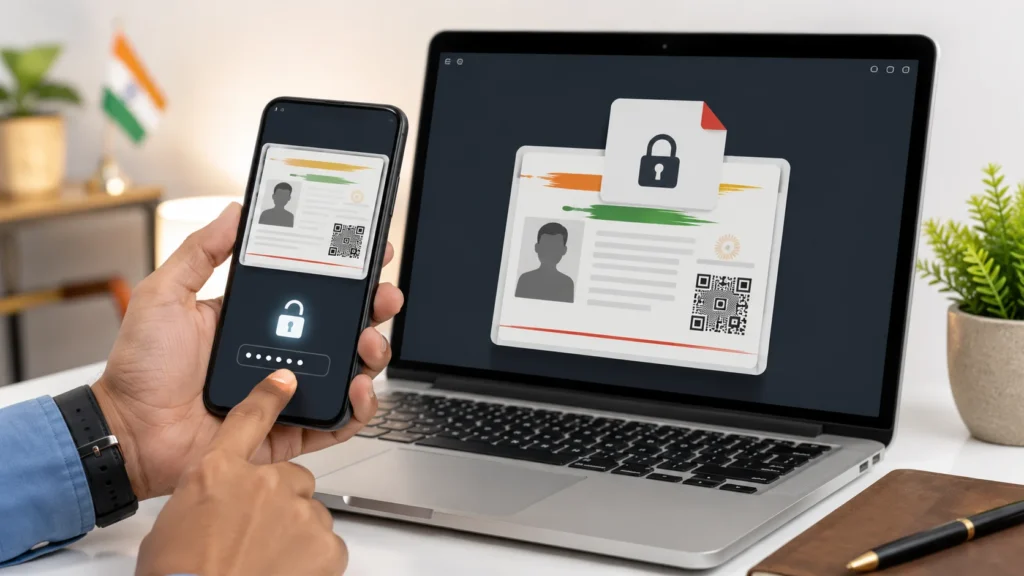
Many people download Aadhaar directly on their phone. Here is a simple mobile-friendly process. Open the file manager or downloads folder on your phone. Tap the downloaded Aadhaar PDF. Choose a PDF reader if your phone asks which app to use. When the password box appears, type the first four letters of your Aadhaar name in capital letters and then your birth year. For example, if your name is Nitin Sharma and your birth year is 1991, enter: NITI1991
After unlocking, you can view the Aadhaar PDF on your screen. If needed, you can share it only with trusted official platforms. Do not forward it casually in personal chats.
How to Open a Downloaded Aadhaar PDF File on Laptop or Desktop
If you downloaded Aadhaar on a computer, open your Downloads folder and double-click the PDF file. If it opens in a browser, such as Chrome or Edge, you can enter the password there. If it opens in Adobe Reader, type the password in the password box. Example:
Name: Ramesh Yadav
Birth year: 1989
Password: RAME1989
Once opened, you can print it, save it in a secure location, or move it to an encrypted folder.
Why Your Aadhaar PDF Password Is Not Working
Sometimes the Aadhaar PDF password does not work even when you think it is correct. This usually happens because of small format mistakes.
1. You Used Lowercase Letters
The name part must be typed in CAPITAL letters. Aadhaar PDF passwords are case-sensitive.
Wrong: amit1995
Correct: AMIT1995
Even if your phone keyboard automatically uses small letters, switch to capital letters before entering the password.
2. You Entered Your Full Name
The password does not use your full name. It only uses the first four letters or characters of your name as printed on Aadhaar.
Wrong: AMITKUMAR1995
Correct: AMIT1995
3. You Used Your Full Date of Birth
The password uses only the birth year, not the full date of birth.
Wrong: AMIT12051995
Correct: AMIT1995
Use four digits only for the year.
4. You Used a Different Name Format
Your Aadhaar name may be slightly different from the name you commonly use. For example, your daily-use name may be Vicky, but Aadhaar may show Vikram Kumar. In that case, the password should start with VIKR, not VICK. Always use the name printed on Aadhaar.
5. Your Name Has Initials
If your Aadhaar name starts with an initial, dot, or special character, the first four characters may include that format. Example:
Name on Aadhaar: P. Kumar
Birth year: 1990
Password may be: P.KU1990
Names with initials can be tricky. Try the first four visible characters exactly as they appear in the Aadhaar name field.
6. You Added an Extra Space
Do not add a space between the name part and birth year.
Wrong: RAHU 1992
Correct: RAHU1992
Extra spaces before or after the password can also cause errors in some PDF viewers.
7. Your File Is Corrupted
If the file was not downloaded properly, it may not open even with the correct password. In that case, download Aadhaar again from the official UIDAI platform. Use a stable internet connection and wait until the file fully downloads.
8. Your PDF Reader Has a Problem
Some PDF viewers may fail to open password-protected or digitally signed PDFs. Try opening the file in another trusted PDF reader. If the file does not work in a phone PDF viewer, try Adobe Reader, Chrome, Edge, or a desktop PDF reader.
What If Your Aadhaar Name Has Less Than Four Letters?
If your name has fewer than four letters, use the available letters and then add your birth year.
Example: Name: Om
Birth year: 1995
Password: OM1995
Name: Ria
Birth year: 1999
Password: RIA1999
However, if your full Aadhaar name includes a surname or second word, the first four characters may include the next part of the name. Example:
Name: Om Prakash
Birth year: 1995
Password: OMPR1995
This is why the exact name printed on Aadhaar matters.
Can You Open a Downloaded Aadhaar PDF File Without Password?
No, you cannot open a downloaded Aadhaar PDF file without the correct password. The password is required to unlock the file. The good news is that you do not need to remember a separate password. You can recreate it using your Aadhaar name and birth year.
If the file belongs to you, check your Aadhaar name format and birth year carefully. If the PDF belongs to someone else, do not try to open it without permission. Aadhaar is a personal identity document and should be handled responsibly.
Can You Remove the Aadhaar PDF Password?
After opening the PDF with the correct password, some users save another copy without password protection. This may be possible using a trusted PDF viewer or print-to-PDF option. However, removing the password is not always a good idea. Aadhaar contains private information. A password-free copy can be opened by anyone who gets access to your device.
If you still need an unlocked copy for personal use, store it safely. Do not keep it in public folders, shared devices, office computers, cyber cafes, or unprotected cloud storage. Never upload your Aadhaar PDF to unknown online PDF unlocker websites. Such websites may store, scan, or misuse your Aadhaar details.
Is e-Aadhaar Legally Valid?
Yes, e-Aadhaar is legally valid like the physical Aadhaar card. It is a digital version issued by UIDAI and can be used for identity and address verification where Aadhaar is accepted. The downloaded Aadhaar PDF is digitally signed. This helps verify that it came from UIDAI and has not been modified. For most practical uses, e-Aadhaar works the same way as the printed Aadhaar card. You can use e-Aadhaar for many services, including:
Some services may ask for a printed copy, while others may accept the digital PDF or masked Aadhaar.
What Is Masked Aadhaar?
Masked Aadhaar is a safer version of Aadhaar where the first eight digits of the Aadhaar number are hidden. Only the last four digits are visible. For example:
Regular Aadhaar number format: 1234 5678 9012
Masked Aadhaar format: xxxx xxxx 9012
Masked Aadhaar is useful when full Aadhaar number disclosure is not required. It gives identity proof while reducing the risk of exposing your complete Aadhaar number. Whenever possible, use masked Aadhaar for general verification. Share full Aadhaar only when it is clearly required by an official or trusted process.
Safety Tips After Opening Your Aadhaar PDF
Opening the file is only one part. Keeping it safe is equally important.
Benefits of e-Aadhaar
Common Mistakes to Avoid
Troubleshooting Table
| Problem | Common Reason | What to Do |
| Aadhaar PDF says wrong password | Lowercase letters used | Enter first four name letters in capitals |
| Password still not working | Wrong name format | Use the name exactly as printed on Aadhaar |
| File asks password again and again | Extra space or typo | Retype carefully without spaces |
| PDF does not open at all | File may be corrupted | Download Aadhaar again |
| PDF opens blank | PDF reader issue | Try another trusted PDF reader |
| Digital signature not visible | Viewer limitation | Open in Adobe Reader |
| Mobile cannot open file | App compatibility problem | Use Google Drive PDF Viewer or Adobe Reader |
| Birth year not accepted | Wrong year entered | Use birth year registered in Aadhaar |
| Name has initials | First four characters unclear | Try the exact initial format shown on Aadhaar |
| Downloaded file missing | Saved in another folder | Check Downloads, Files app, or browser downloads |
FAQs
Final Thoughts
A downloaded Aadhaar PDF is password-protected to keep your identity details safe. To open it, enter the first four letters of your name in CAPITAL letters followed by your birth year in YYYY format. For example: Name: Rahul Sharma Birth Year: 1992 Password: RAHU1992
If the password does not work, check capitalization, name spelling, initials, spaces, and birth year. Use a trusted PDF viewer and download the file again if needed. Always keep your Aadhaar PDF secure. Use masked Aadhaar when possible, avoid unknown PDF unlocking websites, and share your Aadhaar only with trusted platforms.