Why Aadhaar Portal Login Fails After OTP Is Entered
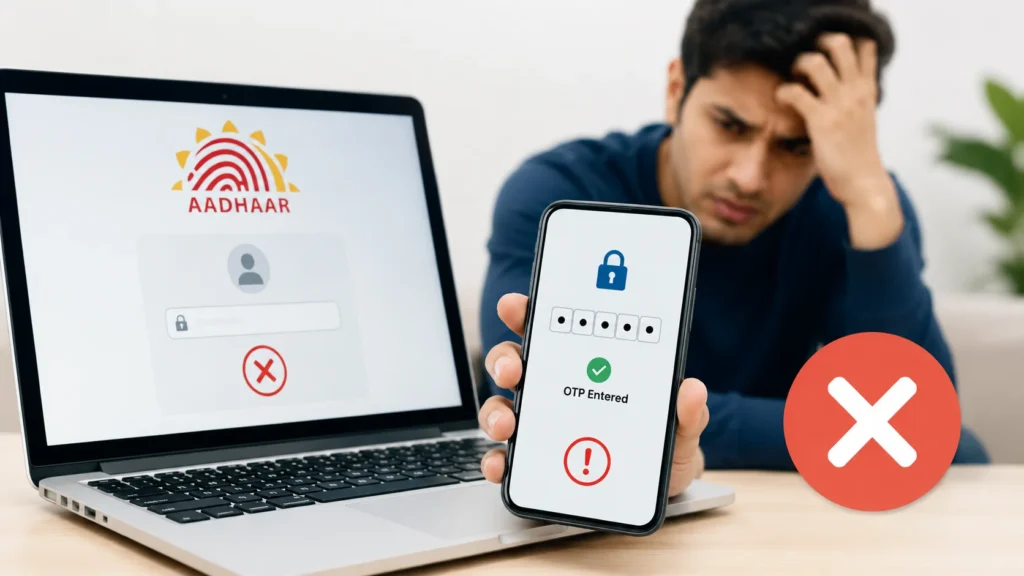
Many people face a common problem while using the Aadhaar UIDAI portal. You enter your mobile number, receive the OTP, type it correctly, and still the login fails. Sometimes the page refreshes, shows an error, or simply does not move forward. This issue is more common than most users think.
It can happen because of browser problems, server load, expired OTPs, mobile number mismatch, or temporary technical glitches on the Aadhaar portal. In this guide, you will learn why Aadhaar portal login fails after OTP is entered, how to fix it step by step, and what you can do to avoid the problem in the future.
What Happens During Aadhaar OTP Login?
When you log in to the Aadhaar portal, the system sends a One-Time Password (OTP) to your registered mobile number. The portal then checks:
If any of these checks fail, the login process stops.
Common Reasons Aadhaar Portal Login Fails After OTP Is Entered
Here are the most common reasons users experience this issue.
1. OTP Expired Before Verification
OTP codes usually work for only a short time. If you wait too long before entering it, the Aadhaar portal may reject it.
Signs of This Problem
Quick Fix
Tip: Slow internet can also delay OTP verification.
2. Browser Cache and Cookies Problems
Sometimes your browser stores old Aadhaar portal data. This outdated cache can interfere with login verification.
How to Fix It
On Chrome
After clearing, reopen the Aadhaar portal and try again.
Best Browsers for Aadhaar Login
| Browser | Recommended |
| Google Chrome | Yes |
| Microsoft Edge | Yes |
| Firefox | Yes |
| Older Internet Explorer | No |
3. Session Timeout Error
If the Aadhaar login page stays open too long before OTP verification, the session may expire. This is one of the biggest reasons Aadhaar Portal Login Fails After OTP Is Entered.
Fix
4. Weak or Unstable Internet Connection
Even when the OTP is correct, poor internet can interrupt communication between your device and Aadhaar servers.
Common Symptoms
Solution
5. Aadhaar Portal Server Issues
Sometimes the problem is not from your side. The Aadhaar portal can become slow during:
What You Can Do
6. Registered Mobile Number Issues
OTP login only works if your mobile number is linked correctly with Aadhaar. If your number changed recently or became inactive, verification may fail.
Check for These Problems
| Issue | Result |
| Old mobile number inactive | OTP never arrives |
| SIM recently changed | Delayed verification |
| Number not linked with Aadhaar | Login failure |
Solution
Visit an Aadhaar enrollment or update center to update your mobile number if needed.
7. Using Multiple Tabs or Devices
Opening the Aadhaar portal in multiple tabs can confuse the verification session. For example:
This often causes login failure.
Fix
8. VPN or Security Software Blocking Verification
Some VPN apps, antivirus software, or browser security extensions may interfere with Aadhaar authentication.
Try This
9. Incorrect System Time on Your Device
A wrong phone or computer clock can create verification mismatch errors.
Fix Device Time
Android
- Open Settings
- Go to Date & Time
- Enable “Automatic Time”
Windows
- Open Settings
- Select “Time & Language”
- Enable automatic time sync
Step-by-Step Fix for Aadhaar OTP Login Failure
Follow this simple sequence to solve the issue faster.
Step 1: Refresh the Aadhaar Portal
Close the browser completely and reopen it.
Step 2: Clear Browser Cache
Delete cookies and cached files before retrying.
Step 3: Use a Supported Browser
Chrome or Edge usually works best.
Step 4: Request a Fresh OTP
Old OTPs may no longer work.
Step 5: Avoid Multiple Login Attempts
Too many failed attempts may temporarily block verification. Wait a few minutes before retrying.
Step 6: Check Mobile Network
Make sure OTP messages are arriving normally.
Step 7: Try Another Device
If login still fails:
Best Time to Use Aadhaar Portal
Users often report smoother login during low-traffic periods.
Recommended Timing
| Time | Traffic Level |
| Early Morning | Low |
| Afternoon | Medium |
| Evening | High |
| Late Night | Low |
How to Prevent Aadhaar Login Problems
You can avoid future login issues with a few simple habits.
Helpful Tips
When You Should Contact Aadhaar Support
If the problem continues for several days, contact Aadhaar support. You may need help if:
FAQs
Final Thoughts
Facing Aadhaar Portal Login Fails After OTP Is Entered can be frustrating, especially when you urgently need services like downloading Aadhaar, updating details, or checking information. The good news is that most login issues are temporary and can be fixed easily by: Clearing browser, cache Requesting a new OTP, Using stable internet, Avoiding multiple tabs, Trying again later.
In many cases, the problem is caused by browser sessions or temporary portal overload rather than incorrect OTP entry. If the issue keeps happening regularly, updating your browser, checking your registered mobile number, and retrying during low-traffic hours can make the Aadhaar portal work much more smoothly.